

Manage Contacts
Understand the basics of contact records.
- Displaying and Editing Contacts
Once you have located a Contact on the Contacts home page, click the Contact name to display detailed information. To update the Contact, click Update, and then change the fields you want to update.
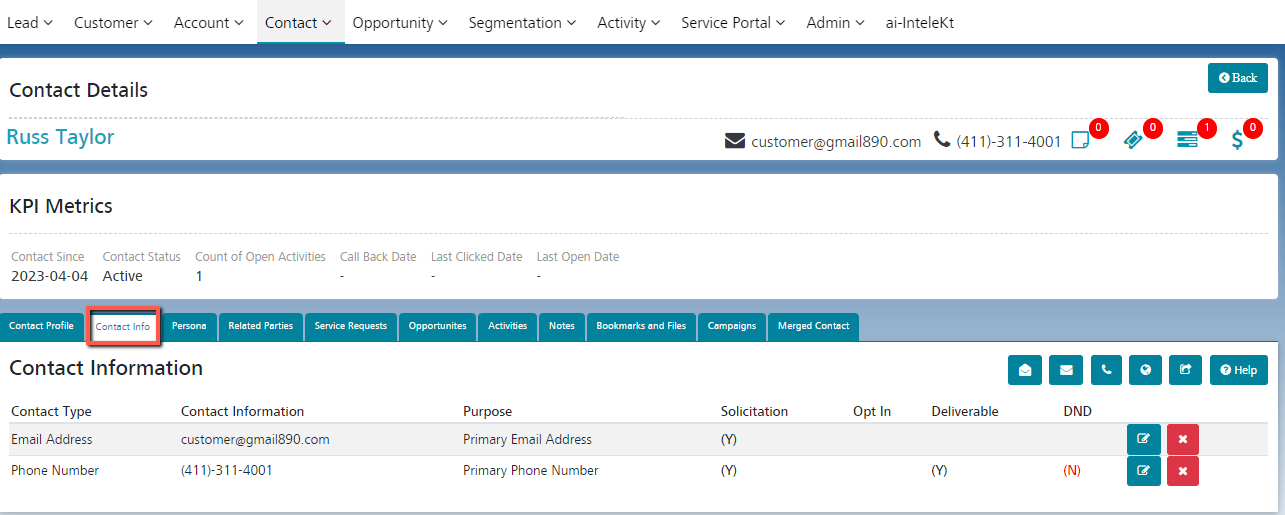
- Contact Info
Manage your Contact’s contact information and keep it up to date.
- Related Parties
Manage the accounts/leads tagged to your Contact in this tab.
- Service Requests
Manage the Service Requests created against the Contact.
- Opportunities
Manage the Opportunities created against the Contact.
- Activities
Manage the Activities created against the Contact.
- Campaigns
View the Campaigns that were targeted at the selected Contact.
- Notes
Manage the Notes created against the Contact.
- Bookmarks and Files
Manage the Bookmarks and Files created against the Contact.
- Contact Fields
Your page layout determines which contact fields are visible and editable.
Considerations for Creating Contacts
Before you create Contacts, consider a few key points.
You can create a Contact from several places in iCRM.
- Create a Contact on an Account’s detail page.
- Create a contact from the Contacts area. You should always associate an Account/Lead to the new Contact.
- To create a contact that’s automatically associated with an Account/Lead, create the Contact from the Account/Lead’s detail page.
- To track a Contact’s relationship with more than one Account, use the Related Parties list to add additional Account-Contact relationships. By tracking all related Accounts on a single Contact record, you avoid creating duplicate Contacts.