

View Service Request
View Service Request
- User can navigate to view service requests from the User’s home and Find Service requests.
- In viewing service requests, the User can be able to view the KPI bar and the following tabs,
- SR Details
- Communication History
- Activities
- Notes
- Bookmark and Files
- SR History Tab
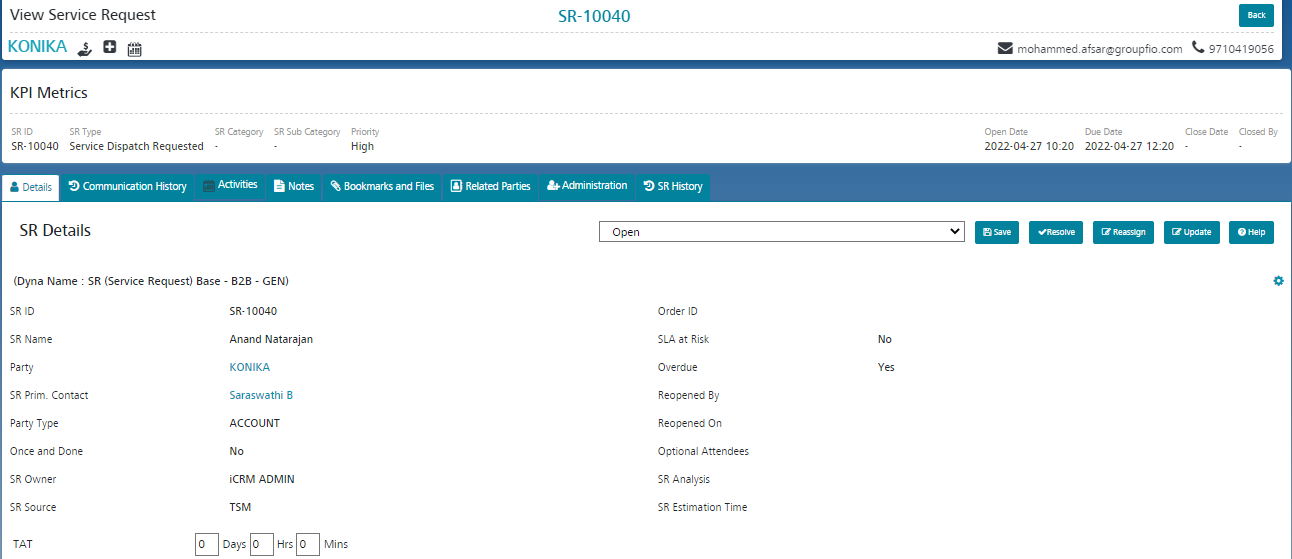
3. KPI Bar: In KPI Bar, user will be able to view the following details,
| S.No | Fields | Description |
| 1 | SR ID | SR ID generated from the system |
| 2 | SR Type | Type of SR |
| 3 | SR Priority | Priority of the Service Request |
| 4 | SR Category | In which Module |
| 5 | SR Sub Category | In the Module, in which the menu |
| 6 | SR Reopen Date | For closed SRs getting reopened, reopen date is to be displayed, and field is to be displayed only for closed SRs getting reopened. |
| 7 | Open Date | SR Open Date in DD/MM/YYYY Format |
| 8 | SR Due Date | SR Due date in DD/MM/YYYY Format |
| 9 | Closed By | User Name |
4. SR Details: In view SR details following details will be provided in read-only format,
| 1 | SR Name | Y |
| 2 | SR ID | Y |
| 3 | Party | Y |
| 4 | SR Prim. Contact | Y |
| 5 | Once And Done | Y |
| 6 | SR Owner | Y |
| 7 | Owner BU | Y |
| 8 | SR Sources | Y |
| 9 | Order ID | Y |
| 10 | SR Type | Y |
| 11 | SLA Rick | Y |
| 12 | Over Due | Y |
| 13 | Re-Opened By | Y |
| 14 | Re-Opened On | Y |
| 15 | Optional Attendees | Y |
| 16 | SR Analysis | Y |
| 17 | SR Estimation Time | Y |
NOTE – Above fields can be managed through dyna configuration.
- In SR Details user is to be provided with an update button, once the user clicks on the update button, will be navigated to the update screen, and the following field will be provided to update the details
- User can update/modify all open, in progress, Assigned, Hold, Feedback Provided, and awaiting client feedback SRs. Whenever SR gets updated/modified.
- For closed SRs, the user will be able to view the reopen button to reopen the service request, once the request gets reopened, SR status will become open and reopened, reopened details will get captured and SLA will be set from reopened date for the request.
- Once the user clicks on the update button, the user will be navigated to the update screen, where all update fields will be displayed, and if any existing data is available in the field ld from the view screen, it will be displayed by default in the update field.
- If the user doesn’t want to update, then needs to click on the Cancel button to go back to the view screen. If want to update the details need to do the required modifications and then click on the update button to save the details. Once the update button is clicked, should give an alert “SR details updated” and navigate to the view screen of the SR.