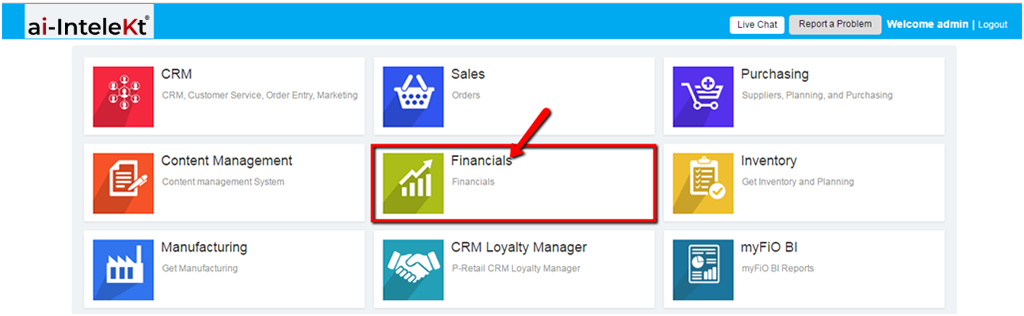



1. Click the “FINANCIALS MODULE” icon.
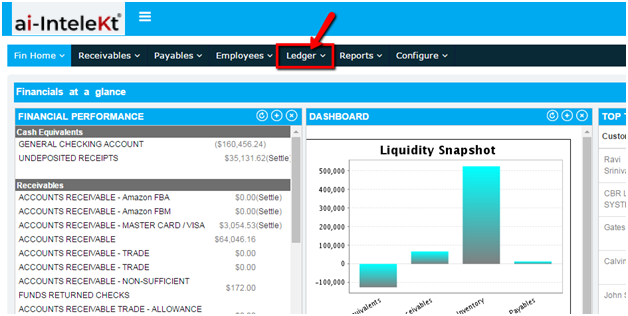
2. Click the “LEDGER” button located at the top navigation bar.
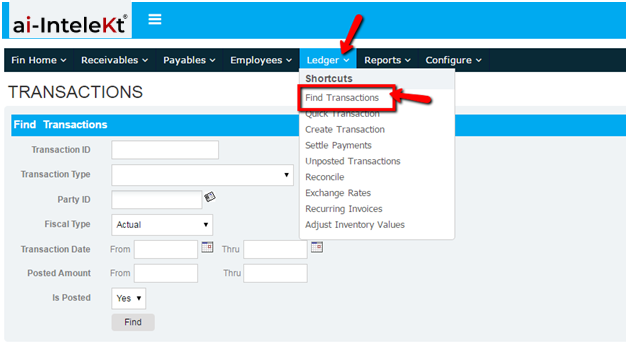
3. Click on “Find Transactions” button found at the left side bar.
4. You will be redirected to this page. Provide necessary information, and click the “FIND” button.
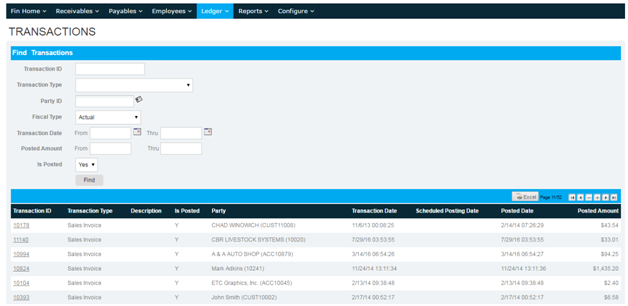
5. If in case, you do not have any details at all; just click the “FIND” button right away. It will redirect you to a page with the list of all Transactions posted in the General Ledger.
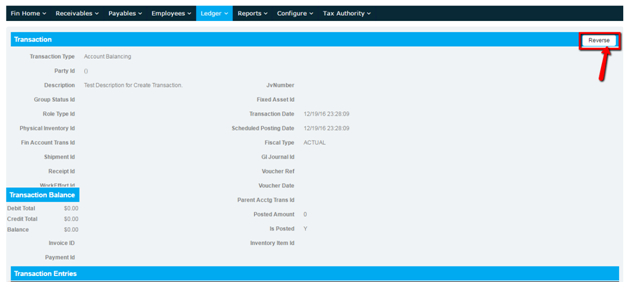
6. Click on the Transaction ID No., found at the left side, to view the Transaction Details.
7. On the top right of the Transaction Section, click the “REVERSE” button.
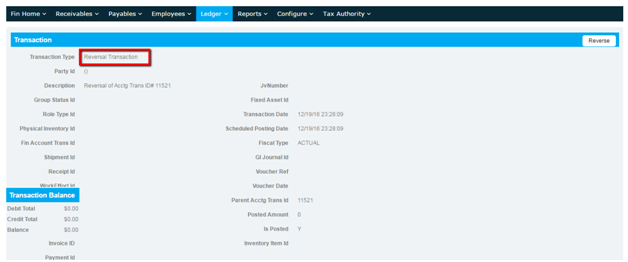
8. A notification message will appear on the left corner of your window.
9. Notice that the Transaction Type has been changed from “Vendor Invoice”, “Payment”, “Customer Credit”, etc. to “Reversal Transaction”.