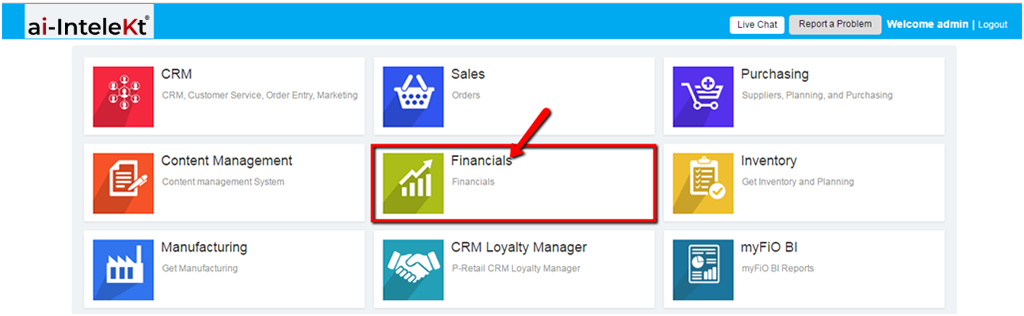


1. Click the “FINANCIALS MODULE” icon.
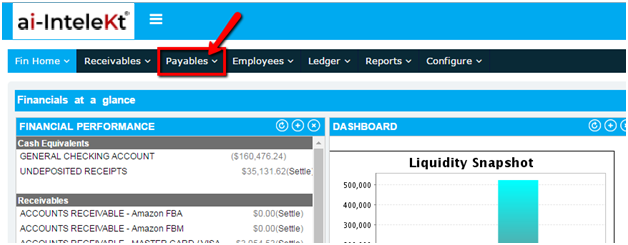
2. Click the “PAYABLES” button located at the top navigation bar.
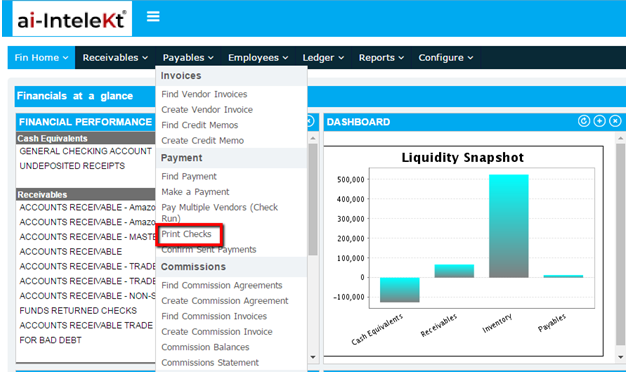
3. Click on “PRINT CHECKS” button found at the left side bar.
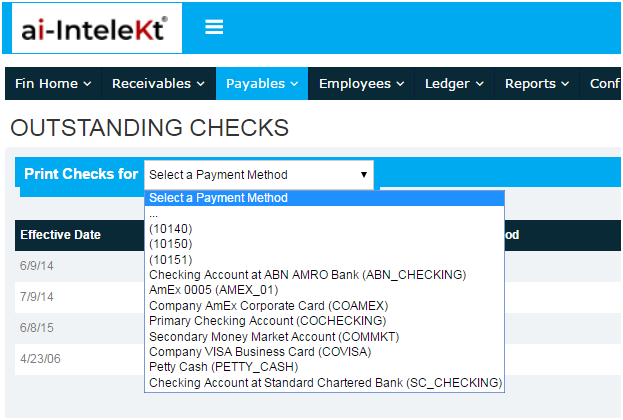
4. Click the Dropdown Menu, and choose the payment method. You may configure these options by going to the Configuration Module.
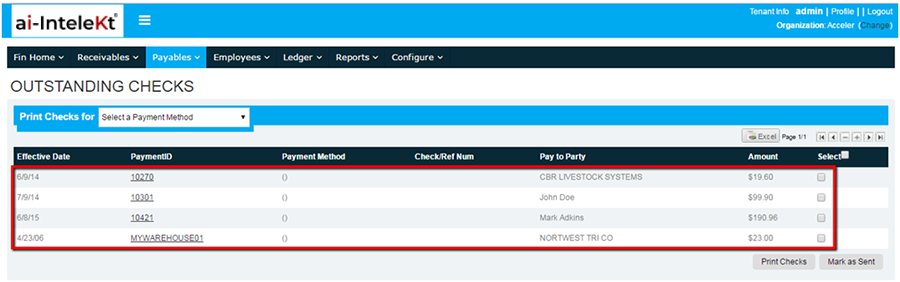
5. All Outstanding Checks for the selected Payment Method will be visible. Click on the Payment ID to view the details.
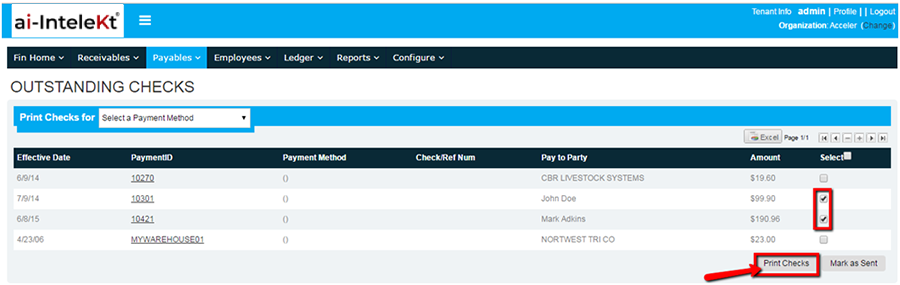
6. Select which Outstanding Check you want to print by clicking the box at the far right side of the item, and click “PRINT CHECKS” button.
7. You will be redirected to a PDF document that you may use to print your checks.
NOTE: If an item within the list is no longer an Outstanding Check, click the “MARK AS SENT” button found at the bottom right corner of the list.