

Create and Update Opportunities
Create Opportunities
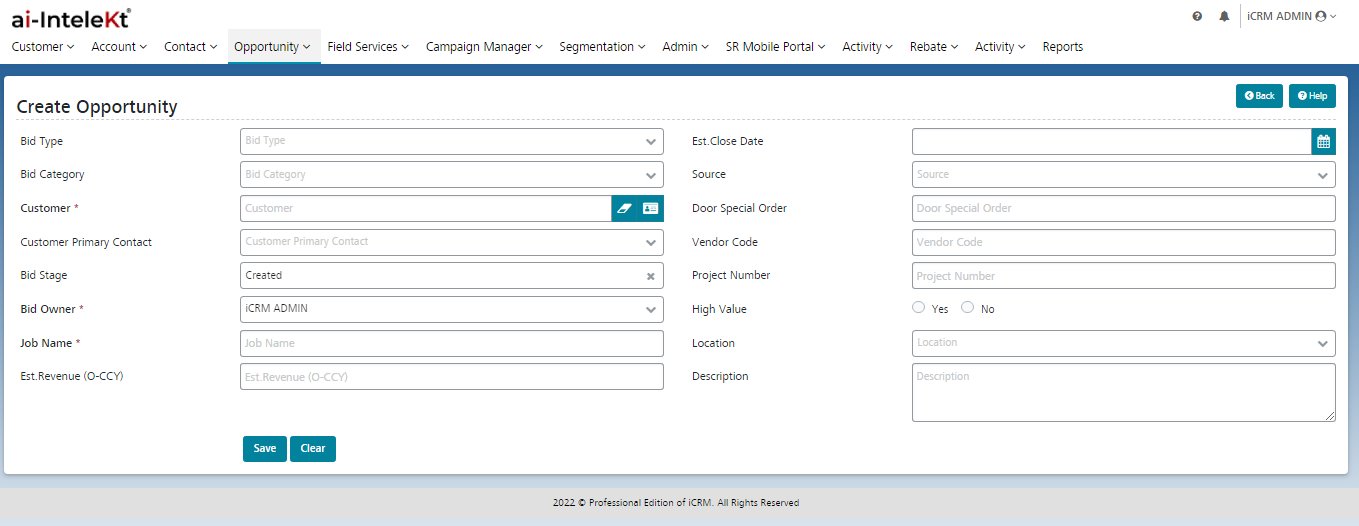
Given below are the steps to create an Opportunity from the original form with all fields
Navigate to the opportunity component.
- Click on the ‘Opportunity’ menu.
- Click on ‘Create Opportunity’.
- The user can fill up the configured fields (the minimum of which are listed below) and click ‘Save’.
- Opportunity Type
- Opportunity category
- Opportunity Name
- Party
- Opportunity primary contact
- Estimated Revenue
- Vendor Code
- Door Special order
- Location
- High Value
- Opportunity Owner
- Opportunity Stage
- Estimated Close Date
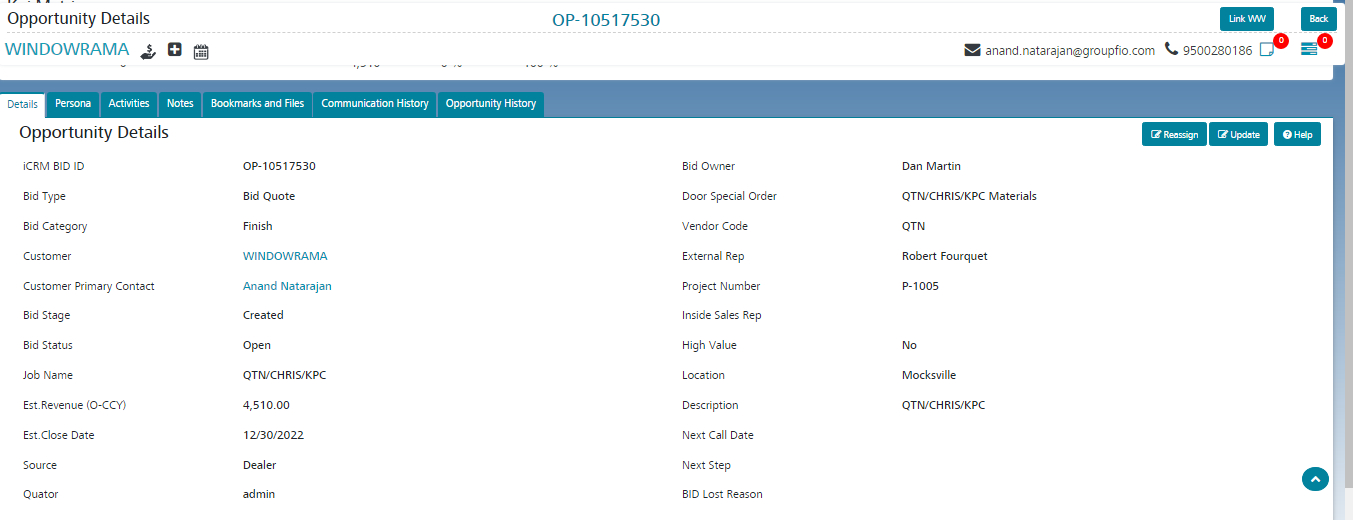
4. The Opportunity record will be created, and the user will be redirected to the View page of the created Opportunity.
Update Opportunities
An existing Opportunity can be updated as given below.
- From the View screen of the Opportunity, click on the Update button.
- Make the required changes.
- If any of the fields Stage, Estimated Revenue, or the Estimated Close Date are updated, the justification for the change should be entered in the ‘Change Note’ field.
- Click on Save.