

Create a Service Request
Create a Service Request
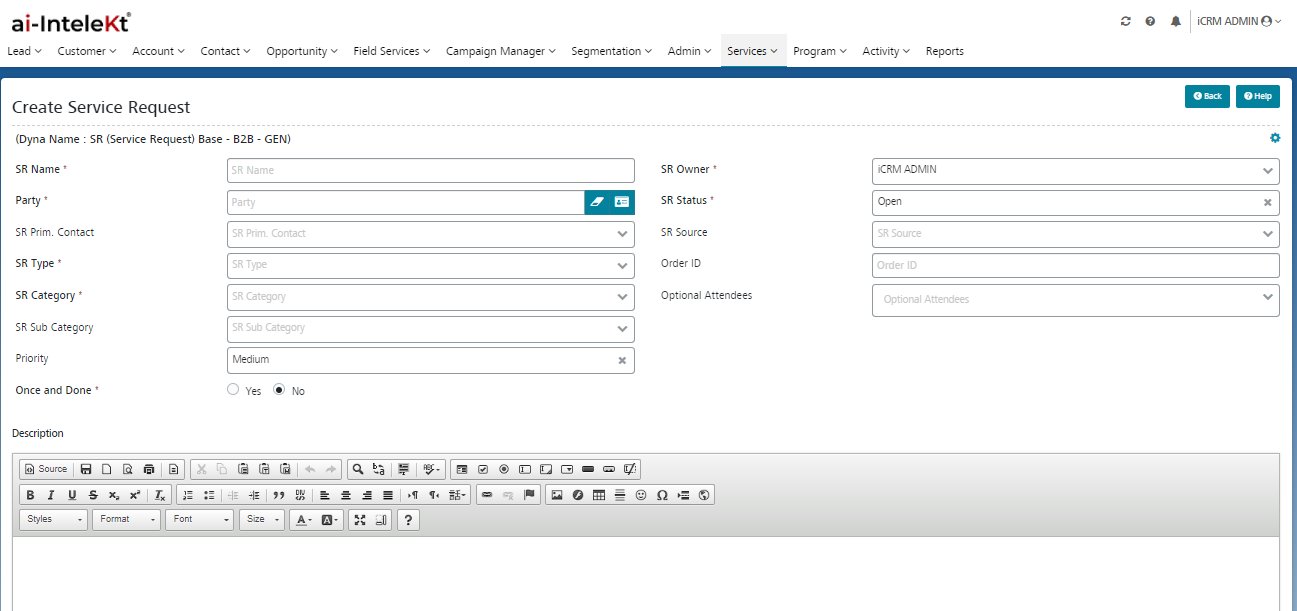
- Once the user clicks on the Create Service request, user will be navigated to create service request page, where user need to provide the inputs to the following fields,
| S.No | Fields |
| 1 | SR Name |
| 2 | Party-Click lookup to view the party. |
| 3 | SR Status |
| 4 | Priority |
| 5 | SR Type |
| 6 | SR Category |
| 7 | SR Subcategory |
| 8 | SR Owner – Auto Created |
| 9 | SR Source |
| 10 | Once and Done |
| 11 | Optional Attendees |
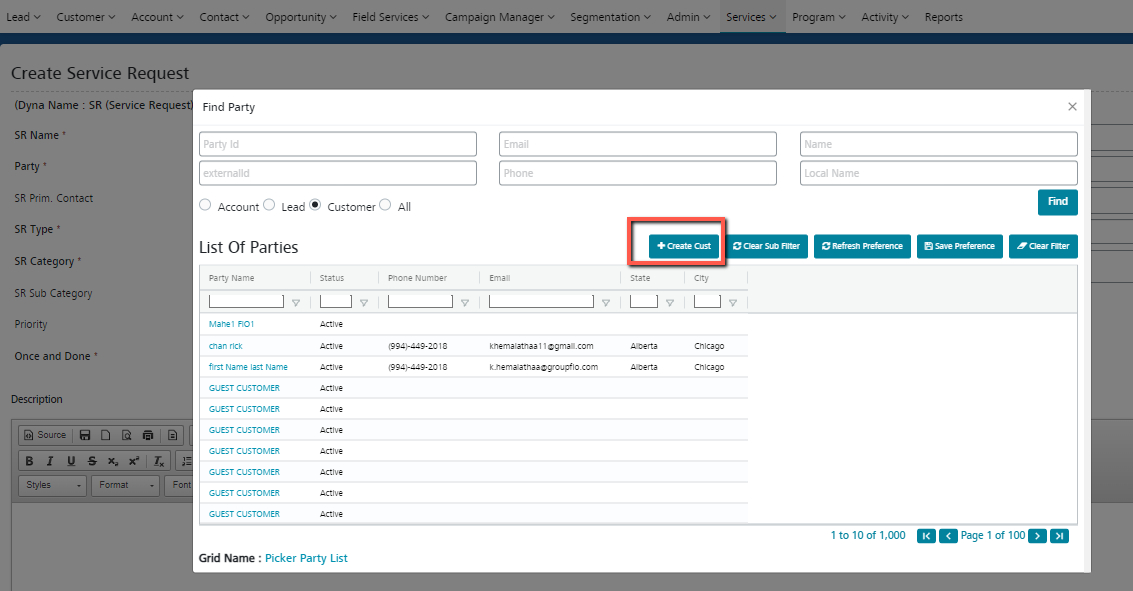
When comes to party look, there will be the ‘+’ to create the customer on this page itself.
In Progress SRs:
1. The task is assigned to the development Team or You working on the task, it comes under In Progress Status .
2. When user clicks on the record, should get navigated to the view service request page.
- Once a user creates the service request the user will be navigated to the view page of the service request.
- Once a service request is created, an auto mailer is to be triggered to the customer’s email address and CC is the user login email along with SR details, and the subject of the mail should get displayed as per the priority.
- If the priority of the SR is High, the subject of the mail should start with Sev 1. And if it is Medium – Sev2 and if it is Low – Sev3.
- While Creating the service request SR owner field will get displayed in the create screen and the ticket will come with the SR Owner
- Choose the optional Attendees, the mail will auto-triggered to all the chosen attendees.
- Email Activity will be created for every email notification from SR, communication history.