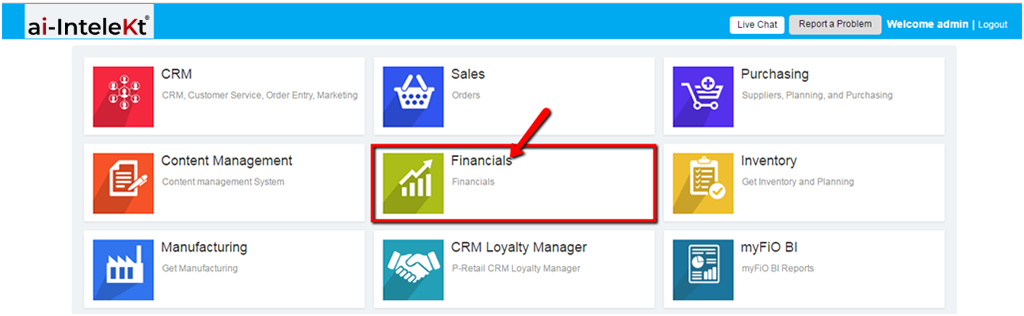



1. Click the “FINANCIALS MODULE” icon.
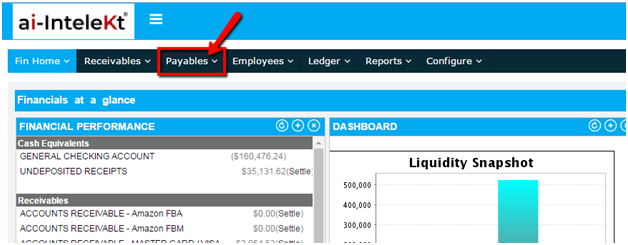
2. Click the “PAYABLES” button located at the top navigation bar.
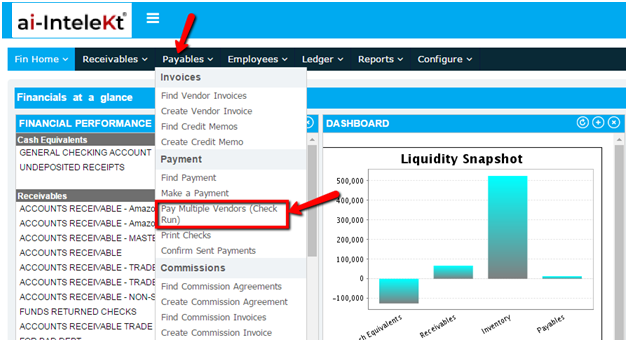
3. Click on “PAY MULTIPLE VENDORS” button found at the left side bar.
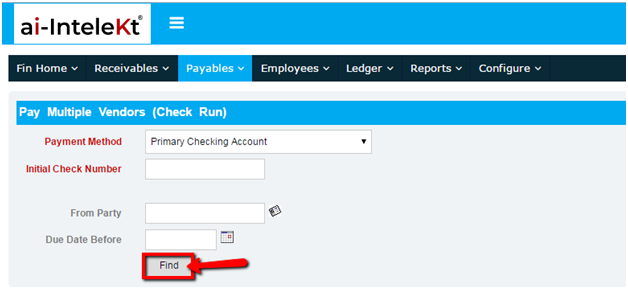
4. You will be directed to this page. Provide necessary information, especially the required fields, and click the “FIND” button.
5. All Outstanding Payables will be displayed based on the information you provided. To select an item, click the box found at the far right side of the item and click “ISSUE CHECKS”.
6. You will be redirected to the “PRINT CHECKS” section. Select a Payment Method by clicking the dropdown button.
7. To make the payment posted in the GL module, click the box found at the far right side of the item you want to select, and then click “MARK AS SENT” at the bottom right corner of the list.
NOTE: Once payment has been successfully posted, your selected item will no longer be included in the list.