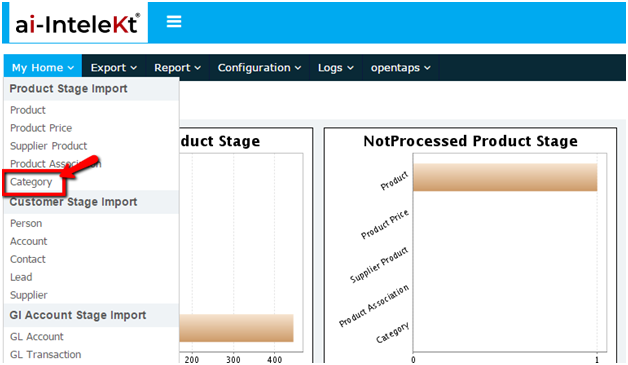




Select data migration category from left navigation pane. The screen will appear as below:
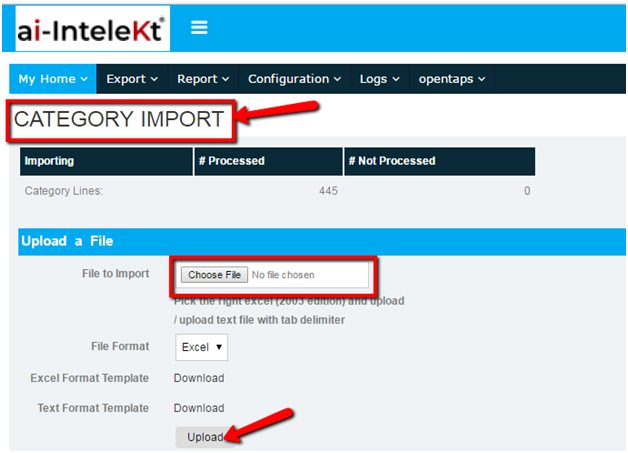
The category and association to catalog will be entered in the excel sheet. Choose the file and upload. Once if the category successfully imported the “Not processed” files will be zero.
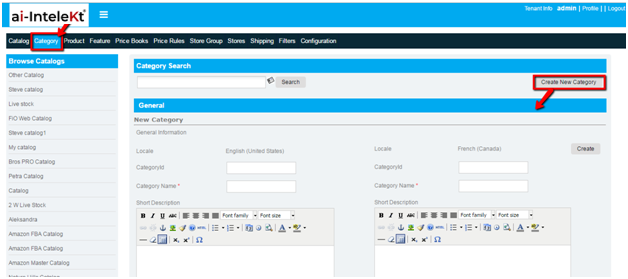
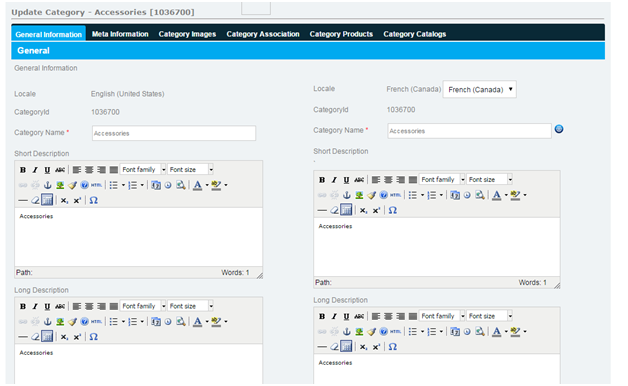
Log on to CMS > Category from top widgets. Select the create category button and the screen will be displayed as below:
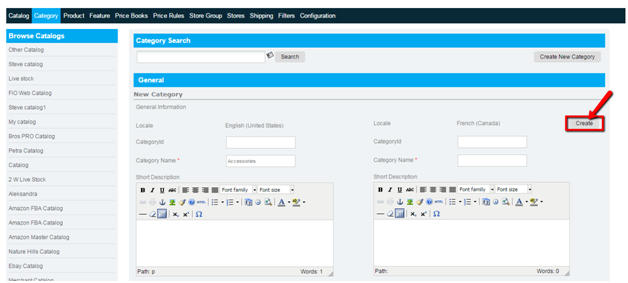
Enter the category details and select the create button.
The category subtab have to be filled.
The category will be created.
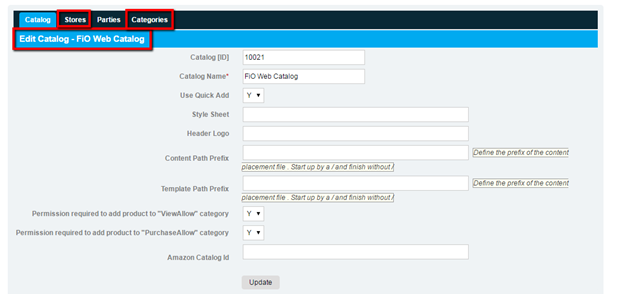
Once catalog has been created, stores and categories tap should be enable in edit catalog screen:
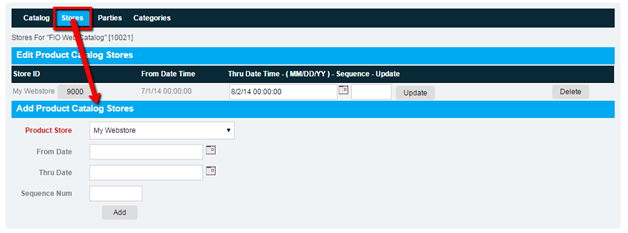
To associate store with product catalog, click on stores tap in edit catalog screen it redirects to add product catalog stores:
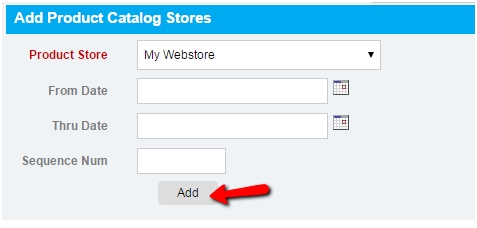
In creation form, User need to select store from dropdown list box, select from and thru date from date picker and also provide Sequence no to prioritize your stores in front end, then click on “ADD”. System will create “product catalog store with specified ID.
Once stores have been created, user can update and delete store in the product catalog section:
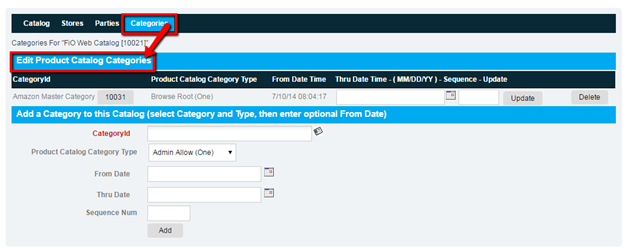
To associate categories with product catalog, click on categories tap in edit catalog screen it redirects to add a category to this catalog:
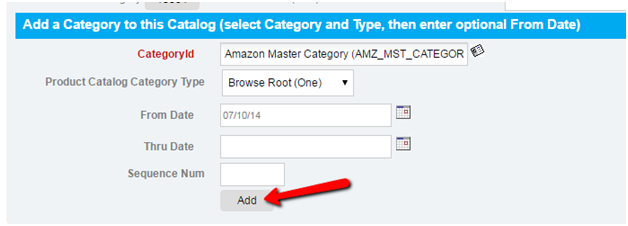
In creation form, User need to select category id from look up find window or enter category id manually to auto complete, select product catalog category type from dropdown list box, from and thru date from date picker and also provide Sequence no to prioritize your category in front end, then click on “ADD”. System will create with specified ID.
Once categories have been created, we can able to update and delete categories association with product catalog: