

Template Synchronization in iCRM

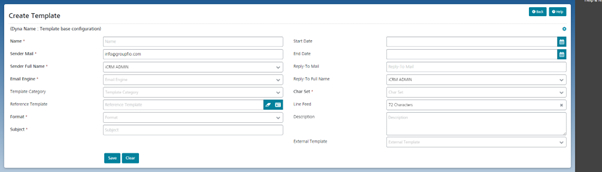
1: Template Creation in iCRM: 
To create templates in iCRM, follow the below steps 

  • Log in to your iCRM Application. 
  • Navigate to the “Campaign Manager” Component. 
  • Select the “Create Template” menu under the campaign manager  

Details: 
To fill the fields on the Create template page, follow these steps: 

  • Name: Enter the name of the template. 
  • Sender Full Name: Select the client’s name for this template. The sender’s email will be automatically selected after you choose the sender’s name. 
  • Email Engine: Select “Send Grid” as the email engine. 
  • Format: Choose “Text and HTML” as the format for the template. 
  • Reply-To Full Name: Select the Full name for this template. The Reply-To email will be automatically selected after you choose the Reply-To Full Name. 
  • Charest: Select “Unicode (UTF-8)” as the character set for the template. 
  • External Template: Select the template from Send Grid, and the subject line will be automatically added. 

2: SendGrid Template Synchronization in iCRM: 
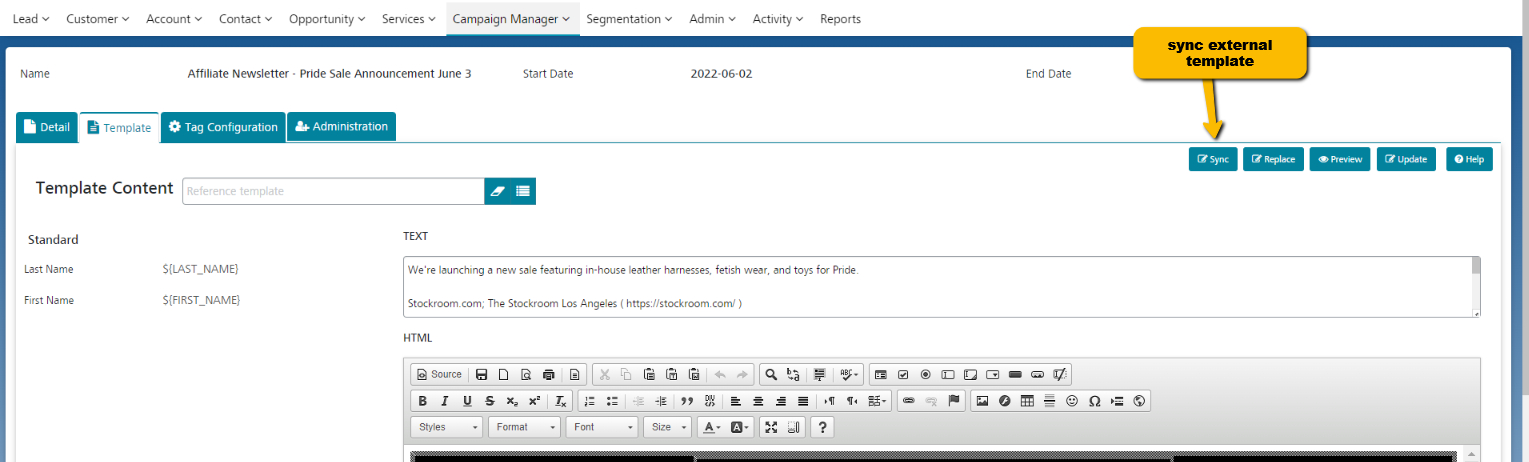
During create/update the application will automatically sys the external template content. 

Also, can sync from the details template screen: 

3: Tag Management: 
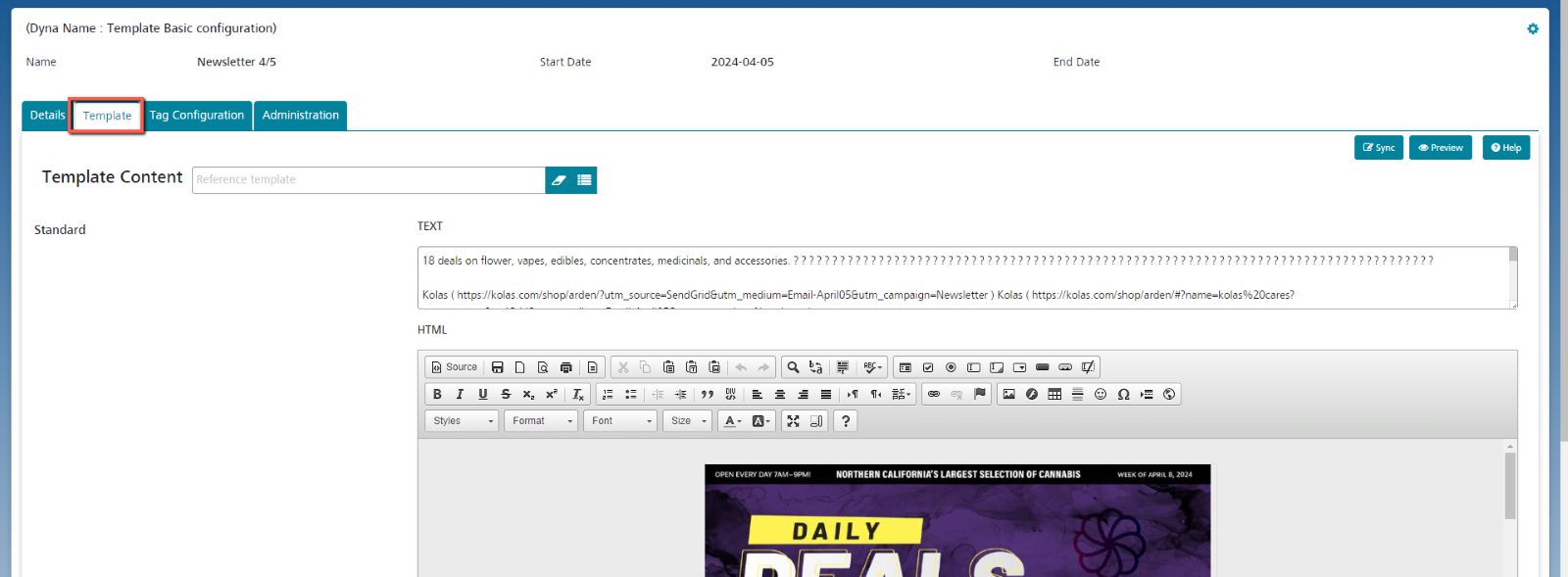
After creating the template, choose the “Template” tag, and then preview the template. This will allow you to see how the template looks and ensure that everything is correctly set up before using it for your email campaigns. 

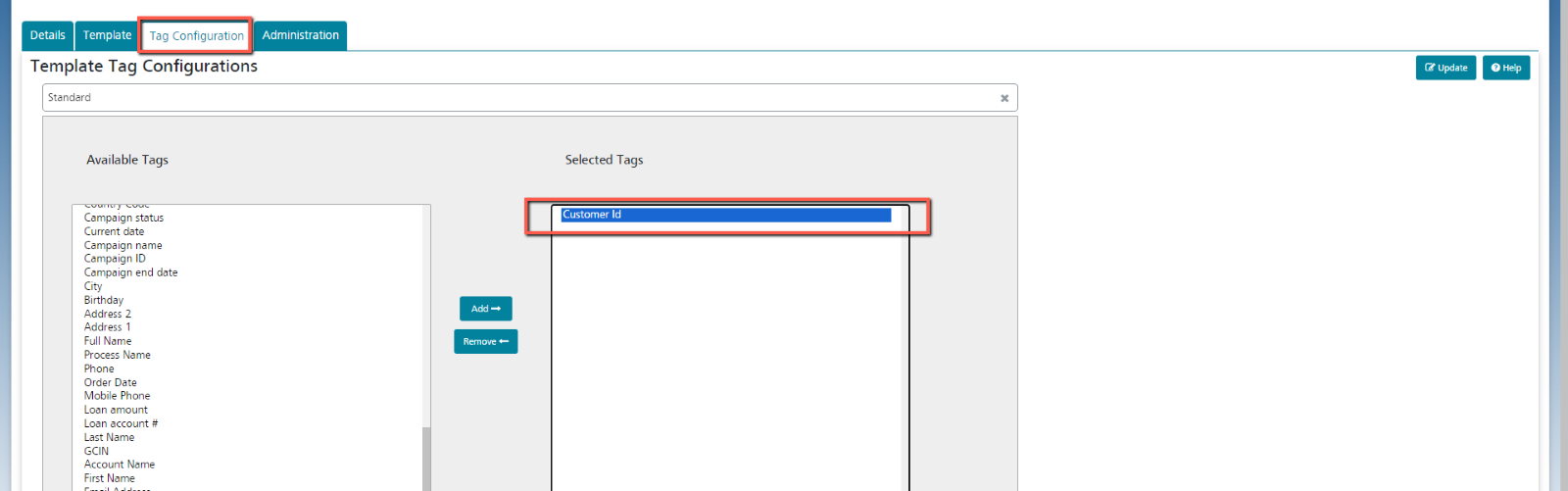
To choose the Tag Configuration and add the needed tag, follow these steps and click the update button: